C# Format Example | Format | Source Code
C# Format Example | Format | Source Code
Purpose: – Illustrates the C# Syntax for Format.
Step 1: Click on C# to Cut-n-paste code into clsFormat.cs
using System; public class clsFormat { public void Main() { //**************************************************************************************** // Example #1: Format(Expession,style) - returns a formatted string // expression - required. object. any valid expression // style - optional. string. A valid named or user-defined format String expression. // //Different Formats for Different Numeric Values // A user-defined format expression for numbers can have from one to three sections // separated by semicolons. If the Style argument of the Format function contains one // of the predefined numeric formats, only one section is allowed. // // If you use This is the result // One section only The format expression applies to all values. // Two(sections) The first section applies to positive values and zeros; // the second applies to negative values. // Three(sections) The first section applies to positive values, the second // applies to negative values, and the third applies to zeros. // //**************************************************************************************** Console.WriteLine("Example #1: Format(Expression,style) $#,##0;;\\Z\\e\\r\\o"); string strStyle = "$#,##0;;\\Z\\e\\r\\o"; // Return Console.WriteLine(Microsoft.VisualBasic.Strings.Format(1, strStyle)); //Returns $1 Console.WriteLine(Microsoft.VisualBasic.Strings.Format(-1, strStyle)); //Returns -$1 Console.WriteLine(Microsoft.VisualBasic.Strings.Format(0, strStyle)); //Returns Zero //write blank line to make output easier to read Console.WriteLine(); // Predefined Numeric Formats // The following table identifies the predefined numeric format names. These may be used // by name as the Style argument for the Format function: // // Format(name) Description() // General Number , G, or g Displays number with no thousand separator. // For example, Format(&H3FA, "g") returns 1018. // // Currency , C, or c Displays number with thousand separator, if appropriate; // displays two digits to the right of the decimal separator. Output is based on system locale // settings. For example, Format(92346, "c") returns $92,346.00. // // Fixed , F, or f Displays at least one digit to the left and two digits to // the right of the decimal separator. For example, Format(4375, "f") returns 4375.00. // // Standard , N, or n Displays number with thousand separator, at least one // digit to the left and two digits to the right of the decimal separator. // For example, Format(5674, "n") returns 5,674.00. // // Percent() Displays number multiplied by 100 with a percent sign // (%) appended immediately to the right; always displays two digits to the right of the // decimal separator. For example, Format(0.5979, "Percent") returns 59.79%. // // P , or p Displays number with thousandths separator multiplied by // 100 with a percent sign (%) appended to the right and separated by a single space; // always displays two digits to the right of the decimal separator. // For example, Format(0.90345, "p") returns 90.35 %. // // Scientific() Uses standard scientific notation, providing two // significant digits. For example, Format(1234567, "Scientific") returns 1.23E+06. // E , or e Uses standard scientific notation, providing six // significant digits. For example, Format(1234567, "e") returns 1.234567e+006. // // D , or d Displays number as a string that contains the value of // the number in Decimal (base 10) format. This option is supported for integral types // (Byte, Short, Integer, Long) only. For example, Format(&H7F, "d") returns 127. // // X , or x Displays number as a string that contains the value of // the number in Hexadecimal (base 16) format. This option is supported for integral // types (Byte, Short, Integer, Long) only. For example, Format(127, "x") returns 7f. // // Yes/No Displays No if number is 0; otherwise, displays Yes. // For example, Format(3, "Yes/No") returns Yes. // // True/False Displays False if number is 0; otherwise, displays True. // For example, Format(0, "True/False") returns False. // // On/Off Displays Off if number is 0; otherwise, displays On. // For example, Format(0, "On/Off") returns Off. //User-Defined Numeric Formats // // The following table identifies characters you can use to create user-defined number // formats. These may be used to build the Style argument for the Format function: // // Character() Description() // // None() Displays the number with no formatting. // (0) Digit placeholder. Displays a digit or a zero. // (#) Digit placeholder. Displays a digit or nothing. // (.) Decimal placeholder. The decimal placeholder determines // how many digits are displayed to the left and right of the decimal separator. // (%) Percent placeholder. Multiplies the expression by 100. // The percent character (%) is inserted in the position where it appears in the format string. // (,) Thousand separator. // (:) Time separator. // (/) Date separator. // (E- E+ e- e+) Scientific format. // - + $ ( ) Literal characters. // (\) Displays the next character in the format string. // ("ABC") Displays the string inside the double quotation marks (" "). //Predefined Date/Time Formats // The following table identifies the predefined date and time format names. // These may be used by name as the style argument for the Format function: // // Format(Name) Description() // General Date , or G Displays a date and/or time. For example, 4/11/2011 11:08:32 AM. // Long Date , Medium Date, or D Displays a date according to your current culture's long date format. // For example, Wednesday, April 14, 2011. // Short Date , or d Displays a date using your current culture's short date // format. For example, 5/14/2011. The d character displays the day in a user-defined date format. // Long Time , Medium Time, or T Displays a time using your current culture's long time format; // typically includes hours, minutes, seconds. For example, 10:08:32 AM. // Short Time or t Displays a time using your current culture's short time format. // For example, 10:06 AM. The t character displays AM or PM values for locales that use // a 12-hour clock in a user-defined time format. // f() Displays the long date and short time according to your // current(culture) 's format. For example, Wednesday, May 13, 2011 11:08 AM. // F() Displays the long date and long time according to your // current(culture) 's format. For example, Wednesday, March 13, 2011 11:07:32 AM. // g() Displays the short date and short time according to your // current(culture) 's format. For example, 4/13/2011 11:07 AM. // M, m Displays the month and the day of a date. For example, March 13. // The M character displays the month in a user-defined date format. The m character displays // the minutes in a user-defined time format. // R, r Formats the date according to the RFC1123Pattern property. // For example, Wed, 12 Mar 2008 11:08:41 GMT. // s() Formats the date and time as a sortable index. // For example, 2011-04-12T11:07:31. The s character displays the seconds in a user-defined // time format. // u() Formats the date and time as a GMT sortable index. // For example, 2011-02-11 11:07:31Z. // U() Formats the date and time with the long date and long time // as GMT. For example, Wednesday, March 14, 2011 6:08:34 PM. // Y, y Formats the date as the year and month. For example, March, 2011. //User-Defined Date/Time Formats // The following table shows characters you can use to create user-defined date/time formats. // These format characters are case-sensitive. // // Character() Description() // (:) Time separator. // (/) Date separator. // (%) Used to indicate that the following character should be read as // a single-letter format without regard to any trailing letters. // d() Displays the day as a number without a leading zero // dd() Displays the day as a number with a leading zero // ddd() Displays the day as an abbreviation (for example, Sun). // dddd() Displays the day as a full name (for example, Sunday). // M() Displays the month as a number without a leading zero. // MM() Displays the month as a number with a leading zero. // MMM() Displays the month as an abbreviation (for example, Jan). // MMMM() Displays the month as a full month name (for example, January). // gg() Displays the period/era string (for example, A.D.). // h() Displays the hour as a number without leading zeros. // hh() Displays the hour as a number with leading zeros. // H() Displays the hour as a number without leading zeros // using the 24-hour clock (for example, 1:15:15). // HH() Displays the hour as a number with leading zeros using the // 24-hour clock (for example, 02:16:15). // m() Displays the minute as a number without leading zeros. // mm() Displays the minute as a number with leading zeros. // s() Displays the second as a number without leading zeros. // ss() Displays the second as a number with leading zeros. // f() Displays fractions of seconds. // For example ff displays hundredths of seconds, whereas ffff displays ten-thousandths of // seconds. // t() Uses the 12-hour clock and displays an uppercase A for any hour // before noon; displays an uppercase P for any hour between noon and 11:59 P.M. // tt() For locales that use a 12-hour clock, displays an uppercase // AM with any hour before noon; displays an uppercase PM with any hour between noon and 11:59 P.M. // y() Displays the year number (0-9) without leading zeros. // yy() Displays the year in two-digit numeric format with a leading zero. // yyy() Displays the year in four-digit numeric format. // yyyy() Displays the year in four-digit numeric format. // z() Displays the timezone offset without a leading zero. // zz() Displays the timezone offset with a leading zero (for example, -08) // zzz() Displays the full timezone offset (for example, -08:00) //Prevent console from closing before you press enter Console.ReadLine(); } } |
Step 2: Click on C# to Cut-n-paste code into Program.cs
using System; using System.Collections.Generic; using System.Linq; using System.Text; namespace CSharp_Syntax { class Program { static void Main(string[] args) { clsFormat myFormat = new clsFormat(); myFormat.Main(); } } } |
Prerequistes:
- Install C# (Express or Standard Edition)
- Install SQL Server Express
- Download Northwind and pubs Database
- Attach Northwind Database to Databases in Sql Express
- Attach pubs Database to Databases in Sql Express
Notes:
- Console Application is used to simplify things, but Windows Forms or Web Forms could also be used
- You can build a library of syntax examples by using same project over and over and just commenting out what you do not want to execute in Program.cs
Instructions:
- Use C# 2010 Express or Standard Edition
- Create new project;
- Click File/New Project
- Select Console Application Template
- Select C# for Language
- name of project could be CSharp_Syntax.
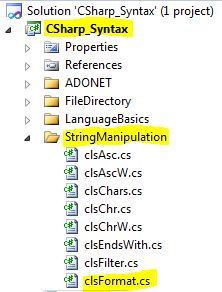
- Add New folder named “StringManipulation”
- Right-click project name in solution explorer;
- add new folder;
- name of folder could be: StringManipulation
- Add Class Named clsFormat to StringManipulation folder
- Right-click StringManipulation folder;
- add new item;
- Select class
- Class name could be clsFormat
- Click on C# in code in step 1 at top of page to copy code into clsFormat.cs
- Click on C# in step 2 at top of page to copy code into Program.cs
- Click green arrow or press F5 to run program