
accessKey Example JavaScript (JS): HTML DOM Objects – Anchor Object: accessKey Example JavaScript (JS)
accessKey Example JavaScript (JS): HTML DOM Objects – Anchor Object: accessKey Example JavaScript (JS)
Purpose: – Illustrates the JavaScript syntax for the Anchor Object accessKey Property .
Prerequistes:
- Install Visual Web Developer 2008
Syntax: object.accessKey=accessKey – Allows you to retrieve or assign accessKey for an element.
Restrictions: Does not work in FireFox
Notes:
- You can build your own library of syntax examples by using same web site over and over and just add new files to it.
Instructions:
- Use Visual Web Developer 2008
- Create new web site;
- Click File/New Web Site
- Select ASP.NET Website Template
- Select C-Sharp for accessKeyuage
- name of Web Site could be JavaScript_Syntax.
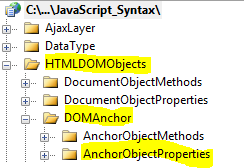
- Add New folder named “HTMLDOMObjects”
- Right-click project name in solution explorer;
- add new folder;
- name of folder should be: HTMLDOMObjects
- Add New subfolder to “HTMLDOMObjects” folder named “DOMAnchor”
- Right-click folder named “HTMLDOMObjects” in solution explorer;
- add new folder;
- name of folder should be: DOMAnchor
- Add New subfolder to “DOMAnchor” subfolder named “AnchorObjectProperties”
- Right-click subfolder named “DOMAnchor” in solution explorer;
- add new folder;
- name of folder should be: AnchorObjectProperties
- Add HTML Page Named accessKey to AnchorObjectProperties subfolder
- Right-click AnchorObjectProperties subfolder;
- add new item;
- Select HTML Page
- HTML Page name should be accessKey
- Click on copy code in code below to copy code into HTML Page accessKey.htm
- Right-click on HTML page accessKey.htm and select view in browser
< !DOCTYPE html PUBLIC "-//W3C//DTD XHTML 1.0 Transitional//EN" "http://www.w3.org/TR/xhtml1/DTD/xhtml1-transitional.dtd">

<html>
  <head>
    <title>IdealProgrammer.com: accessKey </title>
    <!--
    ***************************************************
    * This example is from http://idealprogrammer.com *
    ***************************************************
    -->


   </head>
  <body>
      <input id="Button1" type="button" accessKey="a" value="Button1" /><br /><br />
      <input id="Button2" type="button" accessKey="b" value="Button2" /><br /><br />
      <input id="Button3" type="button" accessKey="c" value="Button3" /><br /><br />
   <script type="text/javascript">
       //*****************************************************
       // DOM Objects
       //*****************************************************


       //*****************************************************
       //    ***    Anchor Object Properties   ***
       //*****************************************************

       //*****************************************************
       // accessKey
       //*****************************************************

       //    SYNTAX:
       //    object.accessKey=accessKey  Allows you to retrieve or assign
       //               accessKey to an element

       // Two ways to retrieve accessKey
       //   1. GetElementsByTagName
            myObject=document.getElementsByTagName('input')[0];
            document.write("Button1 (alt+a) Using getElementsByTagName : " + myObject.accessKey);
            document.write("<br />");
      //   2. GetElementById
            document.write("Button1 (alt+a) Using getElementById: ");
            document.write(document.getElementById('Button1').accessKey);

            document.write("<br /><br />");
       // Two ways to assign accessKey

            //   1. GetElementById
            mySecondButton = document.getElementById('Button2');
            mySecondButton.accessKey = "e";
            document.write("<br />Button3 accessKey changed to alt+e: ", mySecondButton.accessKey);

       //   2. GetElementsByTagName
            myThirdButton = document.getElementsByTagName('input')[2];
            myThirdButton.accessKey = "f";
            document.write("<br />Button3 accessKey changed to alt+f: ", myThirdButton.accessKey)

</script>

  </body>
</html> |
