
screenY JavaScript (JS) Example: HTML DOM Objects – Mouse/Keyboard Attributes – screenY JavaScript (JS) Example
screenY JavaScript (JS) Example: HTML DOM Objects – Mouse/Keyboard Attributes – screenY JavaScript (JS) Example
Purpose: – Illustrates the JavaScript syntax for the screenY Event Attribute.
Prerequistes:
- Install Visual Web Developer 2008
Syntax: event.screenY – returns the vertical position on the clients screen for the mouse position.
Restrictions: None
Notes:
- You can build your own library of syntax examples by using same web site over and over and just add new files to it.
Instructions:
- Use Visual Web Developer 2008
- Create new web site;
- Click File/New Web Site
- Select ASP.NET Website Template
- Select C-Sharp for language
- name of Web Site could be JavaScript_Syntax.
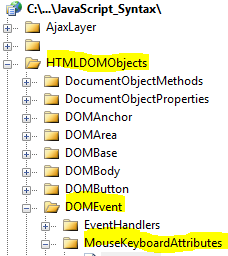
- Add New folder named “HTMLDOMObjects”
- Right-click project name in solution explorer;
- add new folder;
- name of folder should be: HTMLDOMObjects
- Add New subfolder to “HTMLDOMObjects” folder named “DOMEvent”
- Right-click folder named “HTMLDOMObjects” in solution explorer;
- add new folder;
- name of folder should be: DOMEvent
- Add New subfolder to “DOMEvent” subfolder named “MouseKeyboardAttributes”
- Right-click subfolder named “DOMEvent” in solution explorer;
- add new folder;
- name of folder should be: MouseKeyboardAttributes
- Add HTML Page Named screenY to MouseKeyboardAttributes subfolder
- Right-click MouseKeyboardAttributes subfolder;
- add new item;
- Select HTML Page
- HTML Page name should be screenY
- Click on copy code in code below to copy code into HTML Page screenY.htm
- Right-click on HTML page screenY.htm and select view in browser
< !DOCTYPE html PUBLIC "-//W3C//DTD XHTML 1.0 Transitional//EN" "http://www.w3.org/TR/xhtml1/DTD/xhtml1-transitional.dtd">
<html>
<head>
<title>IdealProgrammer.com: screenY </title>
<meta name="description" content="screenY JavaScript (JS) Example: HTML DOM Objects - Event - button JavaScript (JS) Example" />
<meta name="keywords" content="example,javascript,js,screenY,code samples" />
<!--
***************************************************
* This example is from http://idealprogrammer.com *
***************************************************
*****************************************************
DOM Objects
*****************************************************
*****************************************************
*** DOM Event - MouseKeyboardAttributes ***
*****************************************************
*****************************************************
*** screenY
*****************************************************
SYNTAX:
event.screenY returns the vertical coordinate of the screen area)
indicating the position of the mouse pointer when an event was triggered.
=================================================================
An EXCELLENT tutorial on event basics can be found at:
http://www.quirksmode.org/js/introevents.html
=================================================================
You can access the following properties thru the event handler:
Available Properties
altKey Retrieves a value that indicates the state of the ALT key.
altLeft Retrieves a value that indicates the state of the left ALT key.
clientX Sets or retrieves the x-coordinate of the mouse pointer's position relative to the client area of the window, excluding window decorations and scroll bars.
clientY Sets or retrieves the y-coordinate of the mouse pointer's position relative to the client area of the window, excluding window decorations and scroll bars.
ctrlLeft Sets or retrieves the state of the left CTRL key.
offsetX Sets or retrieves the x-coordinate of the mouse pointer's position relative to the object firing the event.
offsetY Sets or retrieves the y-coordinate of the mouse pointer's position relative to the object firing the event.
returnValue Sets or retrieves the return value from the event.
screenX Sets or retrieves the x-coordinate of the mouse pointer's position relative to the user's screen.
screenY Sets or retrieves the y-coordinate of the mouse pointer's position relative to the user's screen.
shiftLeft Retrieves the state of the left SHIFT key.
srcElement Sets or retrieves the object that fired the event.
type Sets or retrieves the event name from the event object.
x Sets or retrieves the x-coordinate (in pixels) of the mouse pointer's offset from the closest relatively positioned parent element of the element that fired the event.
y Sets or retrieves the y-coordinate (in pixels) of the mouse pointer's offset from the closest relatively positioned parent element of the element that fired the event.
The captureEvents() method captures all the events of the event type passed.
When you have multiple events to capture, separate them with the pipe, |, character.
Here are the types of event you can capture:
Event.ABORT
Event.BLUR
Event.CHANGE
Event.CLICK
Event.DBLCLICK
Event.DRAGDROP
Event.ERROR
Event.FOCUS
Event.KEYDOWN
Event.KEYPRESS
Event.KEYUP
Event.LOAD
Event.MOUSEDOWN
Event.MOUSEMOVE
Event.MOUSEOUT
Event.MOUSEOVER
Event.MOUSEUP
Event.MOVE
Event.RESET
Event.RESIZE
Event.SELECT
Event.SUBMIT
Event.UNLOAD
-->
<!-- Script for example 1 -->
<script type="text/javascript">
function exampleOne(e) {
//get event
var evt = e || window.event;
if (evt.button==2)
{
writeData("The right button was pressed!");
}
else
{
writeData("The left button was pressed!");
}
writeData('screenX is ' + evt.screenX);
writeData('screenY is ' + evt.screenY);
writeData('type is ' + evt.type);
writeData('');
}
</script>
<!-- Script for example 2 -->
<script type="text/javascript">
function exampleTwo(e) {
//get event
var evt = e || window.event;
if (evt.button == 2) {
writeData("The right button was pressed!");
}
else {
writeData("The left button was pressed!");
}
writeData('screenX is ' + evt.screenX);
writeData('screenY is ' + evt.screenY);
writeData('type is ' + evt.type);
writeData('');
}
</script>
<script type="text/javascript">
//javascript used by both examples
function writeData(msg) {
msgs.innerHTML += msg + '<br />';
}
function removeMsgsNow() {
msgs.innerHTML = '';
}
</script>
<style type="text/css">
#msgs {
width: 250px;
height: 300px;
overflow: auto;
border: 1px solid #2EB2DC;
}
</style>
</head>
<body>
<center><a href="http://myqol.com">Progress Monitor has 100s of Code Samples and Video Tutorials</a></center>
<h2>Example #1: Demonstrates displaying screenY using recommended technique for registering events</h2>
<p>This example demonstrates how to detect which mouse button was pressed.</p>
Example One: <a href="javascript:void(null)" id="idExampleOne">click this link while pressing right or left mouse button</a>
<br />
<br />
<!-- Script for example 1 -->
<script type="text/javascript">
// This is the "traditional" and recommended technique for registering an event
// handler because it allows you to separate structure from behavior; the
// "inline" method of registering an event within xhtml tags is not
// the recommended approach because it blurs structure and behavior.
// For complete explanation, please see the following excellent article:
// http://www.digital-web.com/articles/separating_behavior_and_structure_2/
//
// Note: Using getElementById so registering event will work in FireFox
//
var idExampleOne = document.getElementById("idExampleOne")
idExampleOne.onmousedown = exampleOne;
</script>
<hr />
<h2>Example #2: Using In-line javascript is simplier, but blurs structure and behavior</h2>
<p>Click the link below while pressing right or left mouse button
</p>
<p>Example Two: <a href="javascript:void(null)"
onmousedown="exampleTwo(event)"
>click this link to see while pressing right or left mouse button</a>.<br />
<br /> <br />
---Messages for both examples follow---<br />
<button id="removeMsgs">Remove messages</button>
</p><p id="msgs"></p>
<script type="text/javascript">
//javascript used by both examples
var msgs = document.getElementById("msgs");
var removeMsgs = document.getElementById("removeMsgs")
removeMsgs.onclick = removeMsgsNow;
</script>
</body>
</html> |
