value JavaScript (JS) Example: HTML DOM Objects – Button Object – value JavaScript (JS) Example
value JavaScript (JS) Example: HTML DOM Objects – Button Object – value JavaScript (JS) Example
Purpose: – Illustrates the JavaScript syntax for the Button Object value Property .
Prerequistes:
- Install Visual Web Developer 2008
Syntax: ButtonObject.value=”texttodisplay” – Allows you to access the text to display on button.
Restrictions: None
Notes:
- You can build your own library of syntax examples by using same web site over and over and just add new files to it.
Instructions:
- Use Visual Web Developer 2008
- Create new web site;
- Click File/New Web Site
- Select ASP.NET Website Template
- Select C-Sharp for language
- name of Web Site could be JavaScript_Syntax.
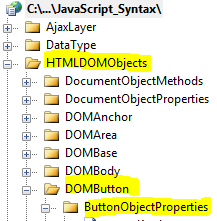
- Add New folder named “HTMLDOMObjects”
- Right-click project name in solution explorer;
- add new folder;
- name of folder should be: HTMLDOMObjects
- Add New subfolder to “HTMLDOMObjects” folder named “DOMButton”
- Right-click folder named “HTMLDOMObjects” in solution explorer;
- add new folder;
- name of folder should be: DOMButton
- Add New subfolder to “DOMButton” subfolder named “ButtonObjectProperties”
- Right-click subfolder named “DOMButton” in solution explorer;
- add new folder;
- name of folder should be: ButtonObjectProperties
- Add HTML Page Named value to ButtonObjectProperties subfolder
- Right-click ButtonObjectProperties subfolder;
- add new item;
- Select HTML Page
- HTML Page name should be value
- Click on copy code in code below to copy code into HTML Page value.htm
- Right-click on HTML page value.htm and select view in browser
< !DOCTYPE html PUBLIC "-//W3C//DTD XHTML 1.0 Transitional//EN" "http://www.w3.org/TR/xhtml1/DTD/xhtml1-transitional.dtd">

<html>
  <head>
    <title>IdealProgrammer.com: value </title>
    <!--
    ***************************************************
    * This example is from http://idealprogrammer.com *
    ***************************************************
    -->
    <style type="text/css" id="myStyle">

       .myButtons
        {
            font-size:large;
            color:red;
        }
        .myButtons input
        {
        color:Blue
        }

        .myButton2
        {
            font-size:xx-small;
        }
        .myButton2 input
        {
        font-style :italic;
        }

        .myButton3
        {
            background-color:#d0e4fe;
        }
        .myButton3 input
        {
        font-weight:600
        }


    </style>
    <script type="text/javascript">

        //****************************************************************
        //         Set Cookie
        //****************************************************************
 function Set_Cookie( name, value, expires, path, domain, secure )
{
// set time, it's in milliseconds
var today = new Date();
today.setTime( today.getTime() );

/*
if the expires variable is set, make the correct
expires time, the current script below will set
it for x number of days, to make it for hours,
delete * 24, for minutes, delete * 60 * 24
*/
if ( expires )
{
expires = expires * 1000 * 60 * 60 * 24;
}
var expires_date = new Date( today.getTime() + (expires) );

document.cookie = name + "=" +escape( value ) +
( ( expires ) ? ";expires=" + expires_date.toGMTString() : "" ) +
( ( path ) ? ";path=" + path : "" ) +
( ( domain ) ? ";domain=" + domain : "" ) +
( ( secure ) ? ";secure" : "" );
}

//****************************************************************
//         Get Cookie
//****************************************************************
// this fixes an issue with the old method, ambiguous values
// with this test document.cookie.indexOf( name + "=" );
function Get_Cookie(check_name) {
    // first we'll split this cookie up into name/value pairs
    // note: document.cookie only returns name=value, not the other components
    var a_all_cookies = document.cookie.split(';');
    var a_temp_cookie = '';
    var cookie_name = '';
    var cookie_value = '';
    var b_cookie_found = false; // set boolean t/f default f

    for (i = 0; i < a_all_cookies.length; i++) {
        // now we'll split apart each name=value pair
        a_temp_cookie = a_all_cookies[i].split('=');


        // and trim left/right whitespace while we're at it
        cookie_name = a_temp_cookie[0].replace(/^\s+|\s+$/g, '');

        // if the extracted name matches passed check_name
        if (cookie_name == check_name) {
            b_cookie_found = true;
            // we need to handle case where cookie has no value but exists (no = sign, that is):
            if (a_temp_cookie.length > 1) {
                cookie_value = unescape(a_temp_cookie[1].replace(/^\s+|\s+$/g, ''));
            }
            // note that in cases where cookie is initialized but no value, null is returned
            return cookie_value;
            break;
        }
        a_temp_cookie = null;
        cookie_name = '';
    }
    if (!b_cookie_found) {
        return null;
    }
}

</script>

   </head>
  <body id="myBodyID">

        <div style="background-color:Yellow;border-color:black;border-style:solid;border-width:1px;"> click Buttons to change value of  button object:</div><br /><br />
         <!--using onclick to set a cookie and reload page;
        when page is reloading, we check that cookie to assign different styles to body
        -->

      <input id="Button1" type="button"  class="myButtons"  value="button1 - value=button1" onclick="javascript: Set_Cookie( 'mycookie', '1', 30, '/', '', '' ); window.location.reload();" /><br /><br />
      <input id="Button2" type="button"  class="myButtons"  value="button2 - value=button2" onclick="javascript: Set_Cookie( 'mycookie', '2', 30, '/', '', '' ); window.location.reload();"/><br /><br />
      <input id="Button3" type="button"  class="myButtons"  value="button3 - value=button3" onclick="javascript: Set_Cookie( 'mycookie', '3', 30, '/', '', '' ); window.location.reload();"/><br /><br />

   <script type="text/javascript">
       //*****************************************************
       // DOM Objects
       //*****************************************************


       //*****************************************************
       //    ***    Button Object Properties   ***
       //*****************************************************

       //*****************************************************
       // value
       //*****************************************************

       //    SYNTAX:
       //    object.value="value"  Allows you to retrieve or assign value for the text displayed for a button


       // Two ways to retrieve value
       document.write("<div style=\"border-style:solid\"><strong>Demonstrating Two Ways to Retrieve Property for Button1</strong><br />")

         //   1. GetElementsByTagName
                myObject=document.getElementsByTagName('input')[0];
                document.write("Using getElementsByTagName: " + myObject.value);
                document.write("<br />");
            //   2. GetElementById

                document.write("Using getElementById: ");
                document.write(document.getElementById('Button1').value);
                document.write("</div><br />");
                document.write("<br />");


       // Two ways to assign value
                if (Get_Cookie('mycookie')) {

                    ButtonNum = (Get_Cookie('mycookie'));
                }
                else {
                    ButtonNum = '1';
                }

                //   1. GetElementById

                if (ButtonNum == '2') {
                    document.write("<div style=\"border-style:solid\"><strong>Demonstrating Assigning Property with GetById for Button2</strong><br />")
                    document.getElementById('Button2').value = "button2 - value=newButton2"
                    document.getElementById('Button2').className = "myButton2"
                    document.write("Button2 value changed to value=newButton2: " + document.getElementById('Button2').value + "</div><br />");
                }
            //   2. GetElementsByTagName

                if (ButtonNum == '3') {
                    document.write("<div style=\"border-style:solid\"><strong>Demonstrating Assigning Property with GetElementsByTagName for Button3</strong><br />")
                    myThirdButton = document.getElementsByTagName('input')[2];
                    myThirdButton.className = "myButton3"
                    myThirdButton.value = "button3 - value=newButton3"
                    document.write("Button3 value changed to value=newButton3: " + myThirdButton.value + "</div>");

                }


   </script>

  </body>
</html> |
