
C-Sharp Sign Example – Code Sample Syntax
C-Sharp Sign Example – Code Sample Syntax
Purpose: – Illustrates using C-Sharp Sign Code Example.
Purpose:
Returns an integer indicating the sign of the
input parameter. The result is -1 if the input
parameter is less than one; 0 if the input is
zero; and 1 if the input is > 0
Syntax:
1. Sign(decimal)
2. Sign(double)
3. Sign(int16)
4. Sign(int32)
5. Sign(int64)
6. Sign(SByte)
7. Sign(Single)
1. Sign(decimal)
2. Sign(double)
3. Sign(int16)
4. Sign(int32)
5. Sign(int64)
6. Sign(SByte)
7. Sign(Single)
| Parameters | Description | decimal | Any valid System.Decimal data type number 2. double – any valid System.Double data type. 3. int16 – any valid System.Int16 data type. 4. int32 – any valid System.Int32 data type. 5. int64 – any valid System.Int64 data type. 6. SByte – any valid 8-bit SByte 7. Single – any valid single floating-point 32-bit number. |
|---|
| Result Data Type | Description | Int32 | Returns an integer indicating the sign of the input parameter. The result is -1 if the input parameter is less than one; 0 if the input is zero; and 1 if the input is > 0 |
|---|
| Quick Example | Sign(3.5) // Returns 1 |
|---|
Step 1: Click cs to Cut-n-paste code into clsSign.cs
using System;
public class clsSign
{

    public void Main()
    {


        //********************************************************************************
        // Purpose: Returns an integer indicating the sign of the
        // input parameter. The result is -1 if the input
        // parameter is less than one; 0 if the input is
        // zero; and 1 if the input is > 0
        //
        // Syntax: 	1. Sign(decimal)
        // 2. Sign(double)
        // 3. Sign(int16)
        // 4. Sign(int32)
        // 5. Sign(int64)
        // 6. Sign(SByte)
        // 7. Sign(Single)
        //
        // Parameter1: decimal - Any valid System.Decimal data type number
        // 2. double - any valid System.Double data type.
        // 3. int16 - any valid System.Int16 data type.
        // 4. int32 - any valid System.Int32 data type.
        // 5. int64 - any valid System.Int64 data type.
        // 6. SByte - any valid 8-bit SByte
        // 7. Single - any valid single floating-point 32-bit number.
        //
        //
        // Result: Int32 - Returns an integer indicating the sign of the
        // input parameter. The result is -1 if the input
        // parameter is less than one; 0 if the input is
        // zero; and 1 if the input is > 0
        //
        // Quick Example: Sign(3.5) // Returns 1
        //
        //********************************************************************************
        // This example is from http://idealprogrammer.com

        Console.WriteLine("Example #1: 	Sign(decimal)");

        Console.WriteLine("Sign(3.5) = {0}", Math.Sign(3.5)); // Returns 1

        //write blank line to make output easier to read
        Console.WriteLine();

        Console.WriteLine("Example #2: 	Sign(double)");
        double myDouble = -6.5;
        Console.WriteLine("Sign(myDouble) = {0}", Math.Sign(myDouble)); // Returns -1
        //write blank line to make output easier to read
        Console.WriteLine();

        Console.WriteLine("Example #3: 	Sign(int16)");
        Int16 myInt16 = 0;


        Console.WriteLine("Sign(myInt16) = {0}", Math.Sign(myInt16)); // Returns 0

        //Prevent console from closing before you press enter
        Console.ReadLine();

    }

} |
Step 2: Click cs to Cut-n-paste code into Module1.cs
Module Module1

    Sub Main()


        Dim myclsSign As New clsSign
        myclsSign.Main()


    End Sub

End Module |
Prerequistes:
- Install C-Sharp (Express or Standard Edition)
- Install SQL Server Express
- Download Northwind and pubs Database
- Attach Northwind Database to Databases in Sql Express
- Attach pubs Database to Databases in Sql Express
Notes:
- Console Application is used to simplify things, but Windows Forms or Web Forms could also be used
- You can build a library of syntax examples by using same project over and over and just commenting out what you do not want to execute in Module1.cs
Instructions:
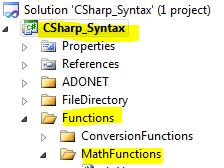
- Use C-Sharp 2010 Express or Standard Edition
- Create new project;
- Click File/New Project
- Select Console Application Template
- Select C-Sharp for Language
- name of project could be C-Sharp_Syntax.
- Add New folder named “Functions”
- Right-click project name in solution explorer;
- add new folder;
- name of folder could be: Functions
- Add New subfolder named “MathFunctions”
- Right-click Functions folder in solution explorer;
- add new folder;
- name of folder could be: MathFunctions
- Add Class Named clsSign to MathFunctions folder
- Right-click MathFunctions folder;
- add new item;
- Select class
- Class name could be clsSign
- Click on cs in code in step 1 above to copy code into clsSign.cs
- Click on cs in code in step 2 above to copy code into Module1.cs
- Click green arrow or press F5 to run program
